Know whether the session is diagnosis, configuration, update checking or file collection.
remote PC maintenance software
Remote PC maintenance software for Windows support
remote PC maintenance software helps a technician look after Windows computers without waiting for a visit: review the screen, guide the user, move a log file, copy a command, restart a task and close the session with clear consent. The important part is not only connecting; it is building a safe maintenance workflow for real support days.
SimpleRemote
Windows maintenance without unnecessary travel
Remote control, approval mode, authorized unattended password, file transfer, clipboard sharing, relay fallback, automatic updates and address books when management is needed.
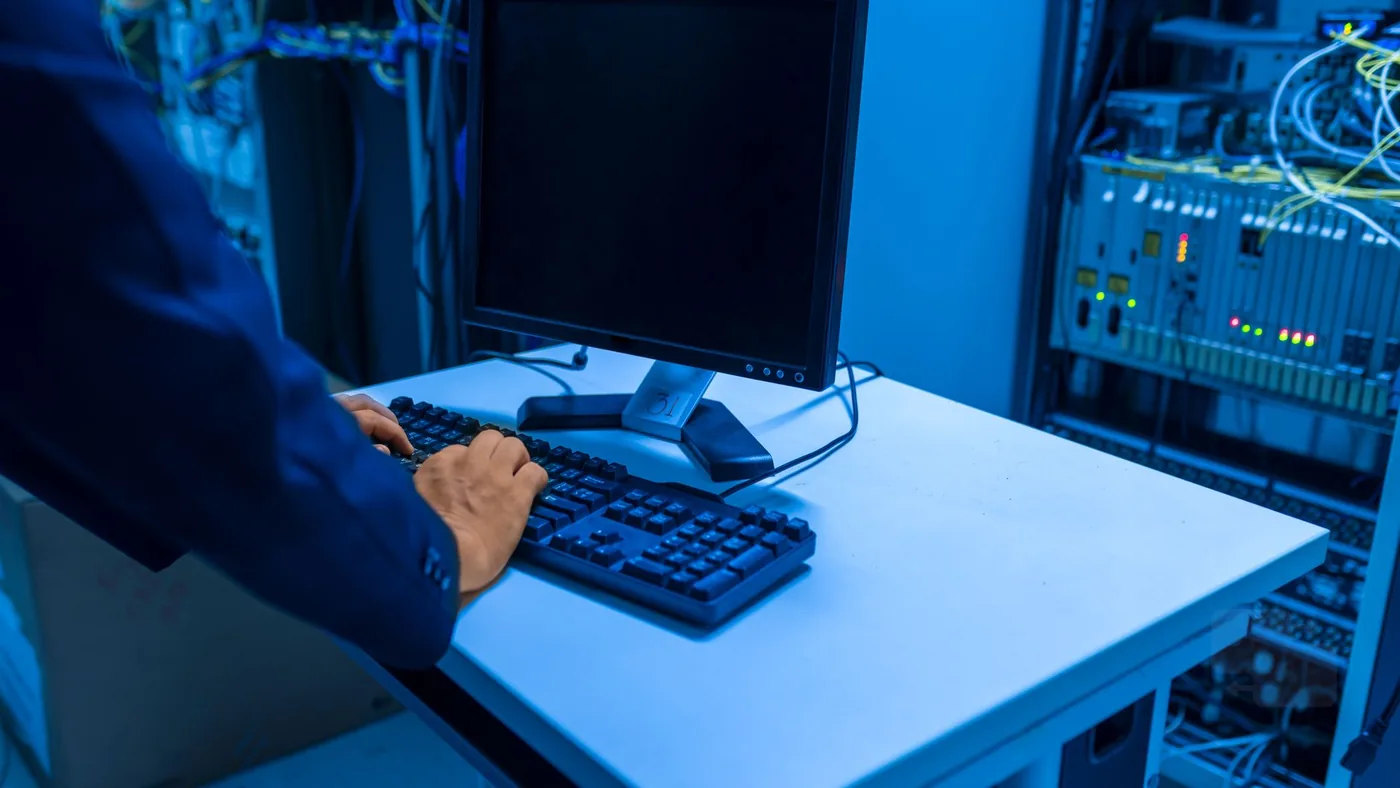
Maintenance workflow
Why remote PC maintenance software needs more than screen control
A practical remote PC maintenance software plan starts with the everyday jobs that make support teams busy: checking a failing application, collecting a log, helping a user apply a setting, confirming that an update completed, removing confusion after a password or printer change, and making sure the user can continue working. Remote control is the visible part, but maintenance also needs file movement, copied text, permission boundaries and a clear way to return to the same devices later.
For a personal user, the priority may be simple access to one owned Windows computer. For a small company or IT provider, the priority changes. Several people may need to support several computers, and the team needs to know which devices are saved, which access is approved, and when a paid management layer is justified. That is why maintenance should be planned as a repeatable process rather than a one-off rescue session.
SimpleRemote focuses on Windows remote control with approval mode for attended support, an authorized unattended password for owned devices, file transfer, clipboard sharing, secure login, automatic updates and relay fallback for difficult networks. Personal and light use can start free. When work becomes recurring or commercial, the business plan adds users, personal and company address books, administration, billing and controlled access from 1 EUR per user per month.
Before connecting
Define the maintenance job before opening the session
Good remote maintenance starts before anyone clicks connect. The technician should know whether the job is observation, troubleshooting, configuration, file collection, update verification or user coaching. That small classification changes how the session should be run. A coaching session needs more explanation because the user is present. A log collection task may need file transfer. A quick command may need clipboard sharing. An owned device check may be suitable for authorized unattended access if the organization has approved it.
This structure also protects the user. Remote access can feel intrusive if the person at the keyboard does not understand what will happen. Approval mode is useful for attended support because the user can see that the connection is being requested for a specific reason. When the technician explains the action, the user is more likely to trust the session and less likely to worry that access will continue after the task is finished.
For recurring support, write down a short rule set: when to use approval, when unattended access is acceptable, which files can be moved, which secrets should not be copied through the clipboard, and who can save devices in an address book. This does not need to be a long policy. It simply turns maintenance from improvisation into a repeatable service.
Use approval mode when a user is present and explain what will be done.
Move logs, installers or documents with file transfer instead of unsafe workarounds.
Add address books and users when maintenance becomes recurring for a team.
Updates and fixes
Use remote PC maintenance software for updates, logs and quick fixes
The most useful maintenance sessions are often modest. A technician may need to check a Windows setting, look at an application error, copy an event text, download a small installer from an approved source, or collect a log for later analysis. These jobs are too small for a site visit but too important to leave unresolved. Remote PC maintenance software makes them manageable when the workflow includes both screen control and supporting tools.
File transfer is important because logs and installers should not be pushed through personal email or consumer messaging. Clipboard sharing is useful for short text: commands, paths, error codes or configuration values. Approval and unattended access decide how the session starts. Relay fallback helps when the remote network is behind strict NAT or a difficult router. Together, these pieces create a more complete maintenance process than screen sharing alone.
Teams should be careful with updates. A remote tool can help verify that an update completed, observe an error, restart an application and guide the user, but it should not replace a proper patch management strategy. Microsoft publishes Windows update and security information in its documentation, while broader security planning can follow neutral references such as the Microsoft Windows update documentation, the NIST small business cybersecurity resources and CISA Secure Our World.
Security
Keep remote maintenance safe with consent and access removal
Maintenance access should be useful without becoming permanent uncontrolled access. Start with the simplest rule: if the user is present, ask for approval and explain the work. If nobody is present and the computer is owned or managed by the organization, unattended access should be authorized in advance and limited to people who really need it. When a technician leaves the team or a device is no longer managed, access should be reviewed and removed.
This is where a business layer matters. A personal tool can solve occasional access, but a company needs device lists, users, billing visibility and access control. SimpleRemote separates these needs. The app can be used for personal or light cases, while the business plan adds personal and company address books, teams, users, administration and subscription management. That separation helps a small team avoid paying for management before it needs it, while still having a path when support becomes professional.
Security is also operational. Do not paste passwords into a remote clipboard unless your internal process explicitly allows it. Prefer file transfer for actual files. Avoid leaving sessions open after the task is done. Record what was changed in the ticket or support note. Test the tool from another network so relay behavior is understood before an urgent incident. For a deeper internal checklist, read the SimpleRemote remote support security checklist.
Small teams
When a small business should add managed remote maintenance
A small business can often start with a simple remote session: one technician, one Windows computer, one problem. The point where management becomes valuable is easy to recognize. Devices are being supported more than once. Several people need access. Users ask for help from different places. The same computers should appear in a shared list. Someone must know who has access after a staff change. At that point, unmanaged remote access becomes a source of risk and confusion.
Managed remote access software should make recurring support easier without forcing the company into an enterprise suite it does not use. Address books reduce repeated setup. User management clarifies who can connect. Billing by user keeps cost understandable. A support team can still use attended approval for user-facing sessions, but it can also maintain owned company devices with authorized access where appropriate.
If your evaluation includes moving files during support, compare this guide with the SimpleRemote article on remote desktop with file transfer. If your main need is lower cost and predictable growth, the home page explains SimpleRemote pricing and the business plan at SimpleRemote pricing. The practical test is simple: can the team connect, get consent, transfer a file, copy short text, reach a device from another network and remove access when it is no longer needed?
Choosing a tool
How to compare remote PC maintenance software without overbuying
Many comparisons start with brand names or long feature tables. For maintenance, a better method is to list the jobs your team actually performs. If most work is Windows support, focus on Windows remote control, user approval, authorized unattended access, file transfer, clipboard sharing, relay fallback, updates and address books. If the team only helps family members or one personal computer, the free or light-use path may be enough. If the team sells support or maintains company computers every week, management and clear pricing become more important.
A trial should include a real maintenance task rather than a perfect demo. Connect from a different network, ask a user to approve the session, move a harmless test file, copy a short command through the clipboard, check how the session ends and confirm whether the computer can be found again. If there will be several technicians, test user management before the first urgent incident. If the device is unattended, confirm that the organization has the right to access it and that the password workflow is approved.
SimpleRemote is designed for this focused path: start with Windows remote control and add business management when the work justifies it. It does not need to be positioned as a universal IT suite. Its value is clearer when the need is practical remote maintenance for Windows users: connect quickly, solve the issue, move what is needed, keep cost predictable and give the team a way to organize access as it grows.
FAQ
Remote PC maintenance software for Windows support: FAQ
What is remote PC maintenance software?
It is software used to maintain a computer from another location by controlling the screen, checking settings, transferring files, copying short text and helping the user or organization resolve problems without a visit.
Is remote maintenance the same as remote support?
They overlap. Remote support often focuses on helping a user during an incident, while remote maintenance also includes recurring checks, update verification, log collection and work on owned or managed computers.
When should I use approval mode?
Use approval mode when a user is present and can authorize the session. It keeps consent clear and helps the person understand what the technician is doing.
When is unattended access appropriate?
Unattended access is appropriate for owned or managed computers where the organization has approved that workflow and access is limited to authorized people.
What should a small business test first?
Test connection from another network, approval, file transfer, clipboard sharing, relay fallback, device saving, user access and access removal after a role or device change.
How does SimpleRemote fit remote PC maintenance?
SimpleRemote provides Windows remote control, approval, authorized unattended password, file transfer, clipboard sharing, relay fallback, automatic updates and business address books when recurring management is needed.